A tour of the screen
The top bar, the module navigation, the inspector, the drawing, the results and the tools around them.
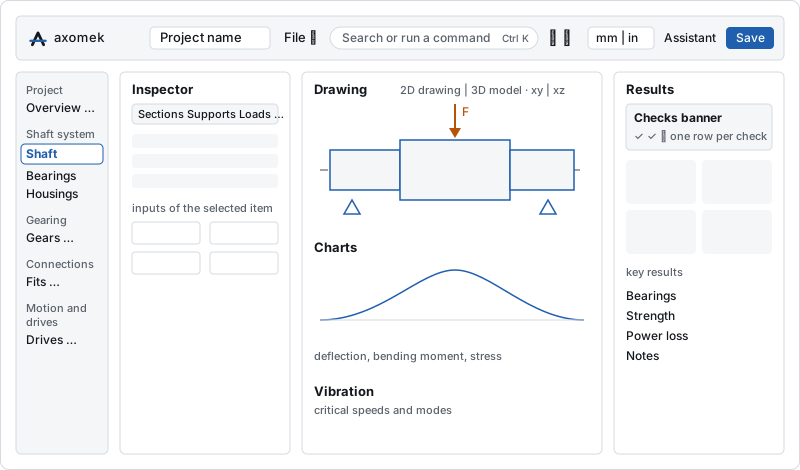
The window has the same layout in every module. The top bar runs across it. Below it, from left to right: the module navigation, the inspector with the inputs, the drawing with its charts, and the results.
The start screen
With no project open, the app shows the start screen. With a project open, File › Home or the logo at the top left goes back to it.
- New project… asks for the new project's name, where to keep it, the units shown and what it starts from: blank, an example or one of your templates (see Your projects).
- Blank project opens an empty shaft to build from sections, supports and loads.
- Open a project file… opens a
.axm.jsonfile from your computer (Ctrl+O). - Projects opens the Projects screen: your recent files (desktop) or the project kept in this browser (web), and the projects kept with your account, to open, rename, duplicate, download or delete (see Your projects). Without an account the web app asks you to sign in for cloud projects; until then your work stays in this browser until you save it to a file.
- Recent lists your latest projects: recent files, the drafts kept in this browser, and cloud projects. All projects… opens the Projects screen.
- Start from an example shows every example, grouped by topic. Each one is a complete project: choosing it starts a new project of your own, named after the example and not saved yet. Look inside opens an example to look at, read-only, without starting a project.
The top bar
From left to right:
| Item | What it does |
|---|---|
| Logo | Goes to the start screen, like File › Home. |
| Project name | The project's name. Click it to rename the project. |
| File chip | Where the project is kept. A dot and a file name: saved to that file, and watched for changes from axm and agents. A cloud symbol: kept in the cloud. "Not saved yet" (in the web app "Draft in this browser"): not saved anywhere. "Example · read-only": an example open to look at. |
| Updating results… | Shown while a solve runs. The last results stay on screen until the new ones are ready. |
| File menu | Home, New project…, Open, New window (desktop), Open from report…, Examples, Projects, Save as template…, Report, Export STEP, Export DXF, Optimise, Settings. |
| Search or run a command | The command palette (Ctrl+K). |
| Undo and redo | Undo (Ctrl+Z) and redo (Ctrl+Y) the last change. The tooltip names the change and where it was made. |
| mm · N / in · lbf | Switches the display between metric and US customary units. |
| Theme | Cycles the system's theme, light and dark. The help pages, the legal pages and the page where you sign in to the desktop app have the same switch; in the web app a choice on one of them shows on all. |
| Assistant | Opens or closes a conversation with Claude about the open project (Ctrl+Shift+A), below the results. See The assistant. |
| Update | Desktop app: shown when an update is available, to download it and restart to install it. |
| Account | Sign in, Settings, Cloud projects, licences, Help (F1), Send feedback…, Check for updates… (desktop), terms and privacy. |
| Save | Saves the project. The label changes with the situation, see below. |
Saving and opening
In the desktop app the first Save asks for a file name. After that, every change is written to the file as you work, and the button reads Save as…. Ctrl+S saves, Ctrl+Shift+S saves under a new name.
In the web app, Save writes back to the file where the browser allows it (Edge, Chrome). Elsewhere it reads Download and saves a copy. Until you save, your edits are kept as a draft in the browser.
A cloud project opened from Projects saves back to the cloud (Save to cloud). If the cloud copy changed since you opened it (saved from another window or device, even while your save is under way), nothing is saved and the app asks whether to overwrite it or open the cloud copy. Overwriting keeps the copy it replaces among the project's earlier saves.
Leaving a project with changes that are not saved (Home, the logo, opening another project, closing the desktop app's window) first asks Save changes?: Save saves it as the Save button does and then goes on, Don't save goes on without saving, Cancel stays. If the save is refused because the file was saved elsewhere meanwhile (another tab or window, axm, an editor), the project stays open showing that file, with your change one Undo away; leaving then asks Leave without your change? with Stay and Leave without it. A project you started from an example and have not changed, or a file you opened and have not changed, goes without asking. In the web app, unsaved changes stay as the tab's draft until you start or open another project in that tab, also when you close the tab (see Drafts in the browser). After about ten minutes of changes kept only as that draft, a notice at the bottom offers Save to file and Save to cloud; Not now puts it away for the rest of your visit.
Examples
File › Examples lists the examples, those for the module you are in first. Choosing one starts a new project from it, named after the example and not saved yet, in place of the project open now. If that project has changes that are not saved, Save changes? asks first; after saving, your project is in Recent, the Projects screen and Switch project… (Ctrl+P) to go back to.
An example opened with Look inside on the start screen is only to look at: every view and result is there, but nothing can be changed or saved. The bar at the bottom offers Start a project from this example and Back to the start.
The module navigation
The rail on the left lists the modules in five groups: Project, Shaft system, Gearing, Connections, and Motion and drives. A number next to a module counts its items, for example the bearings in the project.
Every module works on the same project. Moving between modules changes nothing.
The inspector
The inspector on the left holds the inputs of the open module. In the shaft module it has four tabs: Sections, Supports, Loads and Material. Other modules list their items (bearings, gear pairs, joints) at the top, with the selected item's inputs below.
Number fields take a value in the units shown. You can also type a unit, such as 2 in or 3 kN; the app converts it. A change is applied when you press Enter or leave the field; Esc restores the value. Every change is one undo step.
The drawing
The centre shows the open module's drawing.
In the shaft module:
- 2D drawing and 3D model switch the view. In 3D, drag to orbit, scroll to zoom and right-drag to pan.
- xy plane and xz plane choose the bending plane the drawing and charts show.
- Deflection draws the deflected shaft (2D only). Stress colours colours the shaft by its von Mises stress.
- Click a section, support or load to select it. Drag supports and loads to move them, and section edges to change lengths and diameters. Results update while you drag.
- Below the drawing, Along the shaft charts the deflection, bending moment and stress. Hover a chart or the drawing to read values at that position.
- Below the charts, the vibration card shows the critical speeds and mode shapes.
Drag the handle under a view or chart to resize it. Double-click the handle to restore its size.
The results
The right column holds the results of the open module.
At its top is the checks banner. Its headline says "All 5 checks pass", or "1 of 5 checks fails" with the failing checks under it. Then one row for each of the other checks: what is checked, and the value against its limit, for example "22 / 50 µm" for a maximum or "12.9 / min 2" for a minimum. A check close to its limit is marked as a warning. If no limits are set, the banner reads "No checks yet". See Reading checks and safeties.
The headline and the failing checks stay at the top of the column while you scroll the results, so the verdict is always in view. The bearing and gear modules keep their status line there the same way.
Below the banner come the key results. In the shaft module: Max deflection, Max stress, Bearing tilt, the 1st critical speed, the stiffness at each load and the Shaft mass. Then the bearings on the shaft, the strength results, the Power loss and Notes (warnings from the solver).
If the inputs cannot be solved, the column shows Can't solve yet with the reasons and a hint for each. Nothing is computed from invalid inputs.
The assistant
Assistant in the top bar, or Ctrl+Shift+A, opens a conversation with Claude about the open project (see The Assistant in the app). Where it goes depends on the window:
- Beside the drawing, it shares the results column: the results on top, the assistant below, so you can watch the drawing and the results while it works. Drag the divider between the two, or Tab to it and use ↑ and ↓ (with Shift, farther), Home for the smallest results and End for the smallest assistant; a double click on it shares the column evenly again. Each keeps enough room: the results their verdict and a few rows, the assistant its message box and the last messages.
- In the overview, and in a module with nothing in it yet, there is no results column: the assistant takes a column of its own at the right and the page narrows. The overview's totals (checks passed and failed, system life) stay at the top as it scrolls.
- On a screen at least 1800 pixels wide, the panel's menu (⋯) has Show the assistant as its own column: a full-height column beside the results instead of a share of them.
- In a narrow window (900 pixels and below, where the results come below the drawing), it opens over the content; on a phone it takes the whole screen.
The collapse button (˅) shrinks it to its message line at the bottom of the column. You can still write and send from there; while a reply is on its way it says Thinking…. Click Assistant on the line, or press Ctrl+Shift+A, to expand it. Esc collapses it, and pressed again closes it; over the content, Esc closes it at once. The app remembers on this computer (in the web app, in this browser) whether the assistant is open and how the column is shared.
When the assistant changes the project, its reply lists what changed, with the value before and after: the inputs ("S2 Ø 35 → 40 mm") and then the checks that flipped and the results that moved ("BR1 life 60,200 → 48,900 h"), from the same comparison as axm diff. Click a line to select its item. The items it changed are marked for a moment in the lists and on the drawing, and their fields where they are on screen; the results that moved are marked with a short fade. If your system asks for reduced motion, they keep a still mark instead, until the next change.
The command palette
Press Ctrl+K, or click Search or run a command. Type a few letters to find:
- Go to a module, for example "bolts".
- An Action: save, undo, redo, the calculation report, STEP and DXF export, optimise, the assistant, save as template, home, new project, switch project, new window (desktop), open, open the project in a report PDF, examples, projects, settings, privacy choices, send feedback, send a diagnostic report, switch units, check for updates (desktop).
- A View: the theme, the shaft as a 3D model or a 2D drawing.
- An Example by its title: it starts a new project from it.
- A Template of your own by its name: it opens New project with it chosen.
- A Help page by its title, or Search help….
Use ↑ and ↓ to move, Enter to run and Esc to close.
Units
The mm · N and in · lbf switch changes what you see, not what is stored. Project files always hold metric values, so a file opens the same on every computer. See Units and conventions.
Undo and redo
Every change is one step: a typed value, a drag, a command from the assistant. Undo goes back one step at a time. The undo history belongs to the open project and is cleared when you open another one.
Each step remembers where you made it. Its name says what and where, for example Set face width b (Gears · G1), in the tooltips of the undo and redo buttons, in the Activity list and in the command palette (Undo: and Redo:). Undo and redo take you there: the module opens, the item is selected and what changed is marked for a moment. Opening another module is not a step of its own. If that module is not available to you, the view stays where it is and the Activity list says so.
Reports
File › Report (Ctrl+Shift+P) opens the report screen: the calculation report of the whole project page by page (the checks, the inputs and results of every module, the warnings and the methods with their references), with the parts and modules it contains and its look to choose, Print… and, in the desktop app, Export PDF. See Reports and export.
The overview
The Overview module sums up the project: checks passed and failed, system life, power loss and efficiency, a table of every component with its governing check, and what needs attention. See Project overview.