Building a report
Turn a project into a report you can hand on: choose and order its sections, add a report number, a revision and sign-off, show what changed since the last revision, and save it as PDF or Word.
This tutorial makes the calculation report of the Two-stage helical gearbox example into a document for a review: a summary page first, the checks before the details, a report number with its first revision and the names that sign it off. Then it issues a second revision after a change, with a section that lists what changed.
The report is always made from the open project and its latest results; what you choose here is kept in the project file and taken back by Undo, like any other edit.
Step 1: open the report screen
- Start a project from the example: open the Two-stage helical gearbox, or choose it on the start screen.
- Choose File › Report, press Ctrl+Shift+P, or run Calculation report from the command palette (Ctrl+K).
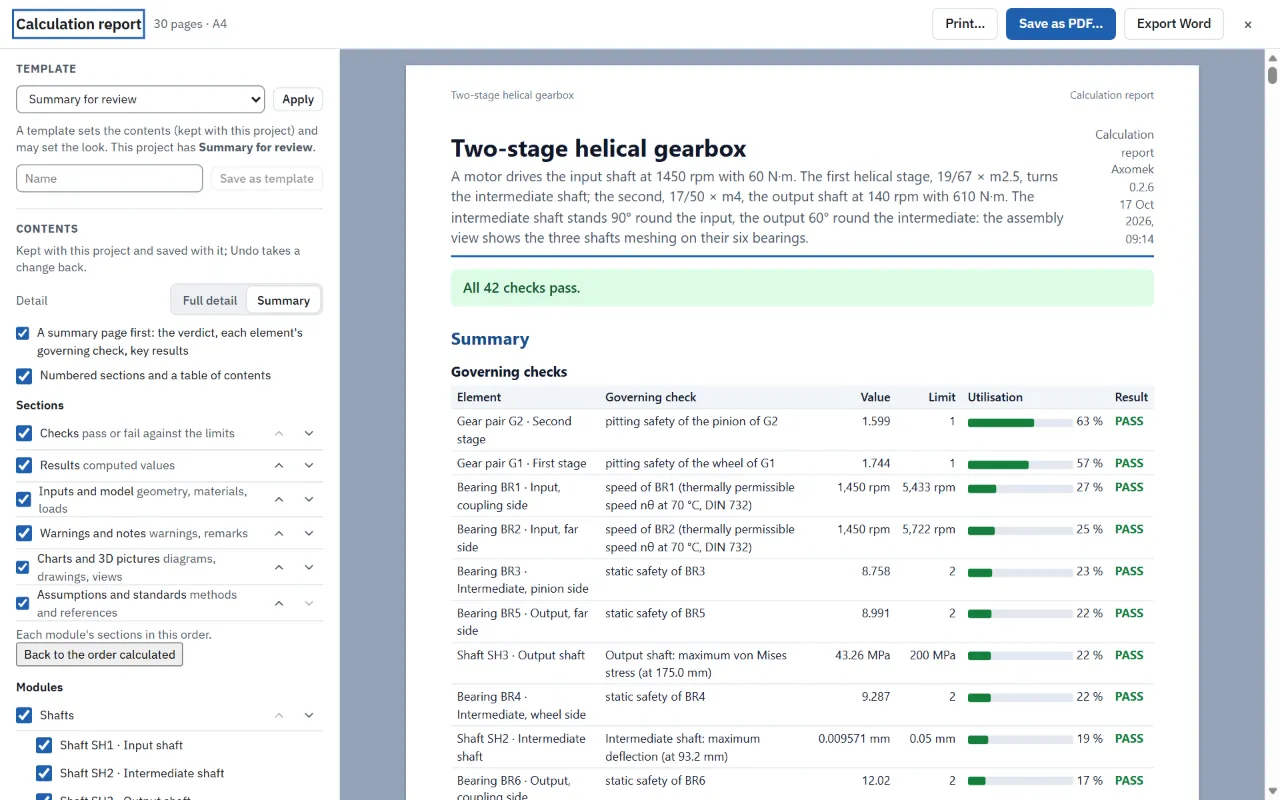
The report screen opens over the project: the pages on the right as they print, with the page breaks shown, and the choices on the left. The pages follow every change at once. × or Esc closes it.
Step 2: start from a template
Under Template, choose Summary for review and Apply. It gives a summary page, numbered sections with a table of contents, the checks of each module first, and a summary instead of full detail.
The summary page lists the governing check of every element, most utilised first: here the pitting safety of the second stage's pinion, at 62.5 % of its limit, heads the list.
Step 3: choose and order the contents
Under Contents:
- Detail: keep Summary, or choose Full detail for the per-location and per-case tables.
- Sections: untick Charts and 3D pictures for a shorter report, or tick it again. The arrows beside each section move it up or down within each module's part; Back to the order calculated undoes that.
- Modules: untick a module, or one of its elements, to leave it out. An element left out leaves the verdict and the Summary of checks too, and the verdict says so.
Step 4: add the document control
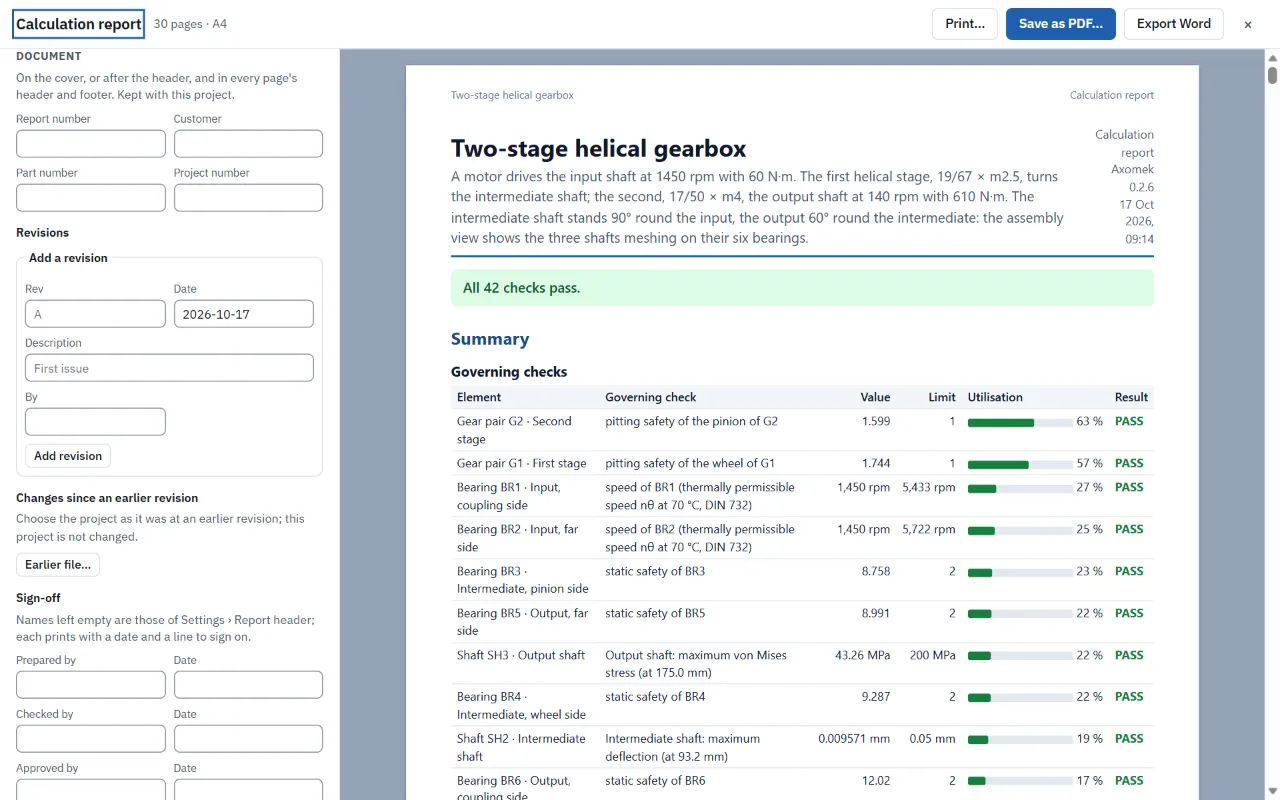
Under Document:
- Report number:
GB-2026-014. Fill in Customer, Part number and Project number if you have them. - Under Add a revision: Rev
A, Date (today unless you change it), DescriptionFirst issue, By your name. Choose Add revision. Revision A is now the report's revision, and the revisions table lists it. - Under Sign-off, fill in Prepared by, Checked by and Approved by, each with a date. A name left empty is the one in File › Settings › Report header.
The Document control table prints after the header. Every page now has a running header with the report number and revision, and a footer with the date, the project's fingerprint and "Page X of Y".
Step 5: save it
- Export PDF (desktop app) saves the report as a PDF, named after the project with
.report.pdf. The PDF carries the project file inside it: File › Open from report… opens it again. - Save as PDF… (web app) or Print… opens the print dialog; choose Save as PDF as the printer. In Microsoft Edge and Google Chrome the page header and footer print too.
- Export Word saves a Word document (
.docx) with the same contents and document control, and Word's own page numbers.
Save the project too (Ctrl+S), for example as gearbox-rev-a.axm.json: that is the file as it was at revision A.
Step 6: issue revision B with what changed
- Close the report screen and make a change: in the gear module, set the second stage's Face width b from
50to40mm. - Open the report again (Ctrl+Shift+P). Under Document, add revision B, "Narrower second stage".
- Under Changes since an earlier revision, choose Earlier file… and pick
gearbox-rev-a.axm.json. For a cloud project, Earlier cloud save… picks one of its earlier saves instead.
The report now opens with a section Changes since revision A: the inputs that changed with their values before and after, the checks that changed their result and the results that moved, with their change. Neither file is changed by it; Stop comparing takes the section out.
Step 7: keep your choices as a template
Type a name in the box beside Save as template, for example Gearbox review, and save. Your template keeps the contents and your look, with your settings: it is offered in every project, in the web and desktop apps, and for axm report --template.
On the command line
The same report, from axm:
axm report gearbox.axm.json --pdf --template "Summary for review"
axm report gearbox.axm.json --docx --since gearbox-rev-a.axm.json
axm report gearbox.report.pdf --extract