Two-stage gearbox in the assembly view
Open the two-stage helical gearbox, look round it in 3D, read its colours, turn a stage round its shaft and see what a too narrow gear does to the checks.
This tutorial works with the Two-stage helical gearbox example: a motor drives the input shaft at 1450 rpm with 60 N·m, two helical stages turn the output shaft at 139.8 rpm with about 613 N·m, and three shafts sit on six bearings. You look at it in the assembly view, change where the second stage stands and make one of its gears too narrow to see the checks fail.
The numbers are those of this version of Axomek.
Step 1: start a project from the example
- On the start screen, under Start from an example, choose Two-stage helical gearbox, or open the example. From an open project, File › New project… (Ctrl+N), choose An example and pick it there.
- A new project named after the example opens, not saved yet. If the project open before had unsaved changes, the app asks first. (Look inside on the tile opens the example read-only instead, to look at without starting a project.)
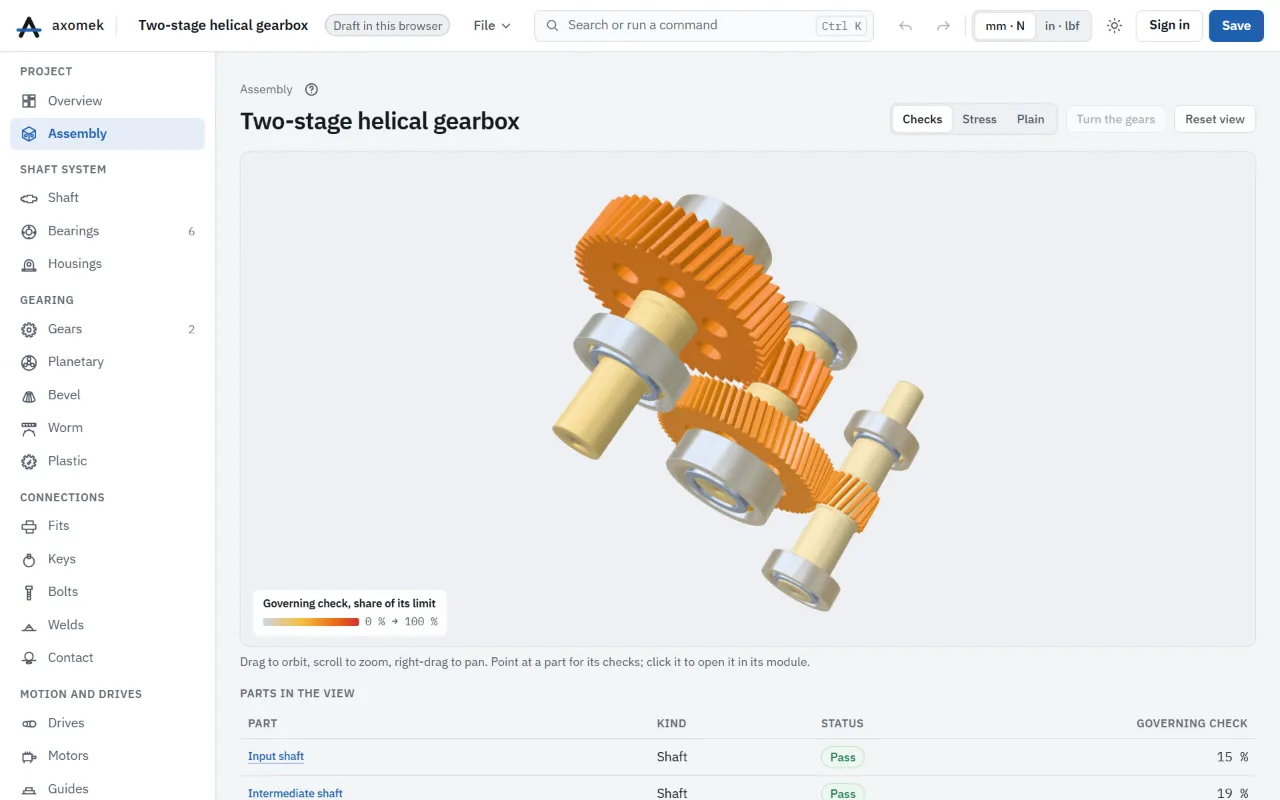
The project opens in Assembly, in the Project group of the navigation, under Overview. It shows the whole project as one machine: the input shaft, the intermediate shaft beside it and the output shaft above and beside that, with the gear pairs in mesh and the bearings at their supports.
Step 2: look round
- Drag to orbit, scroll to zoom, right-drag to pan. Reset view frames the whole gearbox again.
- Point at a part: a box marks it and a label names it, with its status and its governing check.
- Turn the gears turns every shaft at its ratio, the gears in mesh. It stays off when your system asks for reduced motion.
- Below the view, Parts in the view lists every part with its status and the utilisation of its governing check. Each name opens the part, also from the keyboard.
Step 3: read the colours
The switch above the view chooses what the colours show:
| Choice | What you see here |
|---|---|
| Checks | Each part by its governing check, steel at none of its limit, through amber and orange to red at the limit. The shafts and bearings read close to steel; the gears, at 57 % to 63 % of their pitting limit, are the warmest, the second stage most. |
| Stress | The shafts by their von Mises stress along their length, on one scale. |
| Plain | Steel, without results. |
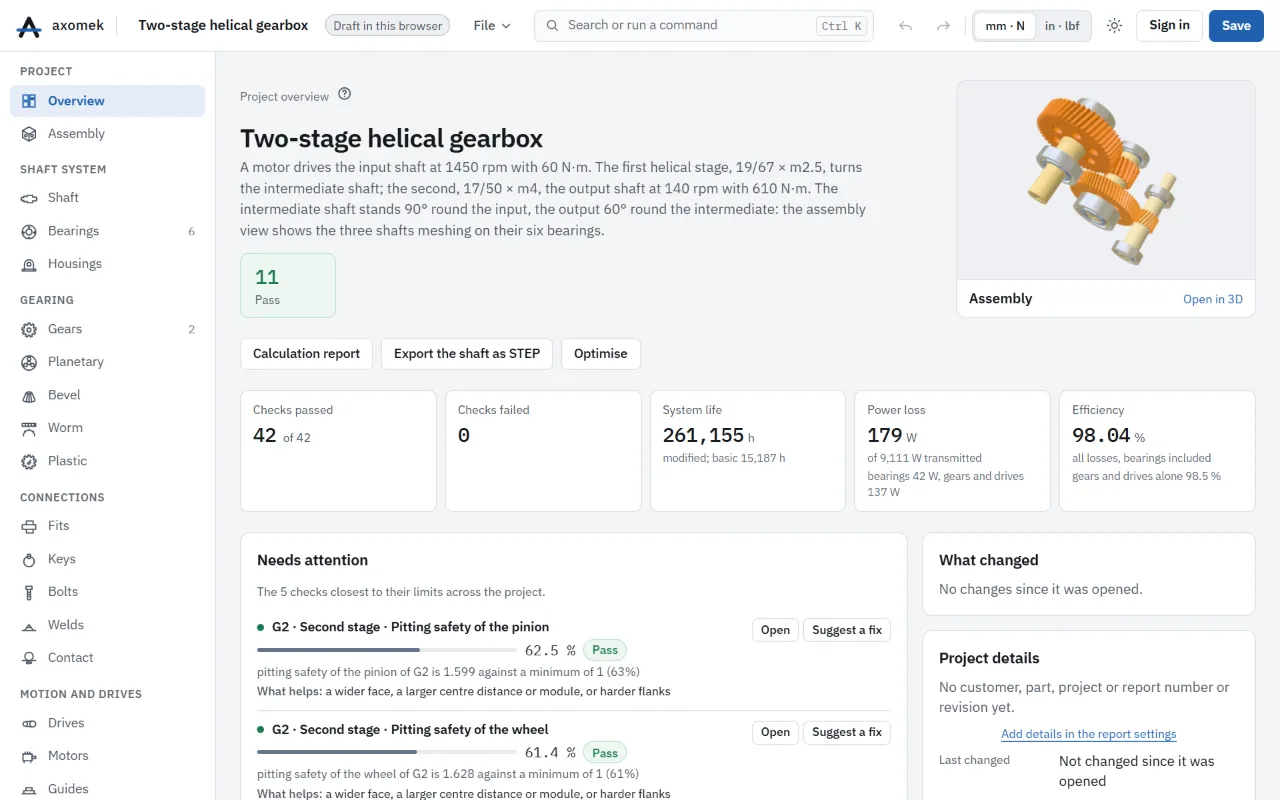
All 42 checks pass. The highest utilisation is the pitting safety of the second stage's pinion: SH 1.60 against a minimum of 1.0, 62.5 % of its limit.
Step 4: open a part
Click the second stage's pinion (or G2 in the parts list). The gear module opens on that pair, with its geometry, its safety factors and its mesh. Choose Assembly in the navigation to come back.
Step 5: turn the second stage round its shaft
Where the output shaft stands is set by the second stage's mesh angle: the wheel's axis sits at the pair's centre distance from the pinion's, in the pair's Wheel direction.
- In the gear module, select G2 and find Gearbox mounting.
- Change Wheel direction from
60to0(degrees). 0° puts the wheel shaft straight above the intermediate shaft, 90° beside it. - Go back to Assembly: the output shaft now stands above the intermediate shaft.
The mesh forces act in the same direction as the wheel stands, so this is not only a picture: the intermediate and output shafts' bearing loads and lives change with it. Press Ctrl+Z to put the angle back to 60°.
Step 6: make the second stage too narrow
- Open G2 in the gear module and set Face width b from
50to12mm. - Go back to Assembly, coloured by Checks.
The second stage's pinion and wheel turn red: their pitting safeties fall to 0.85 and 0.93 against a minimum of 1.0, so 40 of the 42 checks pass. The power loss rises from 178.7 W to 205.4 W. Point at the pinion to read its check.
Press Ctrl+Z to take the change back.
Step 7: the overview
Choose Overview in the navigation. It sums up the same project on one page: the checks passed and failed, the five checks closest to their limits with What helps, the power flow through both stages, the system life of the six bearings and a parts list. Its small 3D view opens the assembly again.
What you have seen
- The assembly view places every shaft from its gear pairs' centre distances and mesh angles: the geometry the shaft loads assume.
- Its colours show at a glance where the design is closest to its limits, and a click leads to the part.
- It has no inputs of its own: every change in a module shows here as soon as the solve finishes.
Next: build a report of this gearbox, or compare the narrow design with the original.